
What Mumcord does
Features
Everything in the current version, with a picture where there is one. What's still coming is on the roadmap. Missing something or something broken? Tell us on GitHub.
Connecting
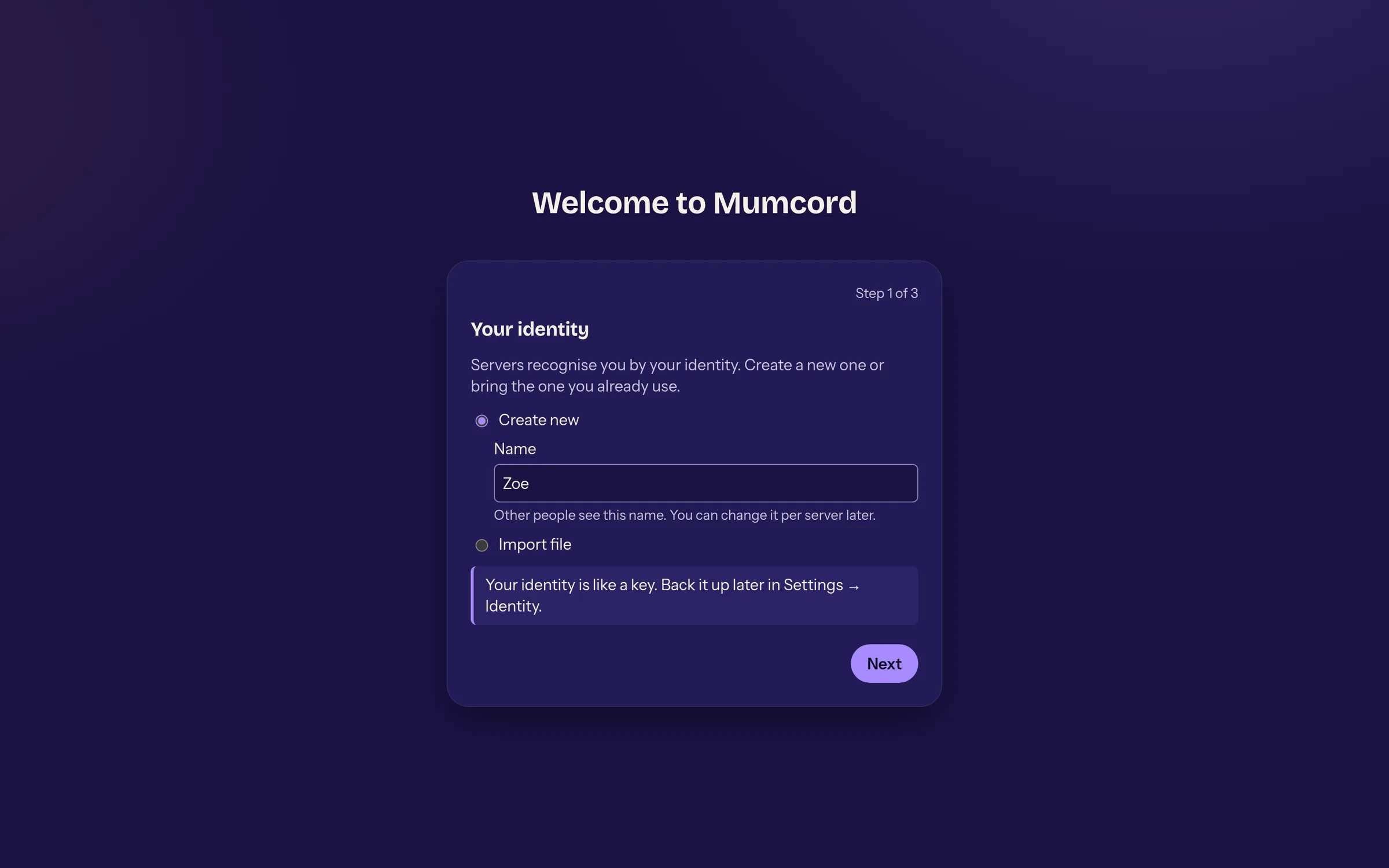
Set up in a minute
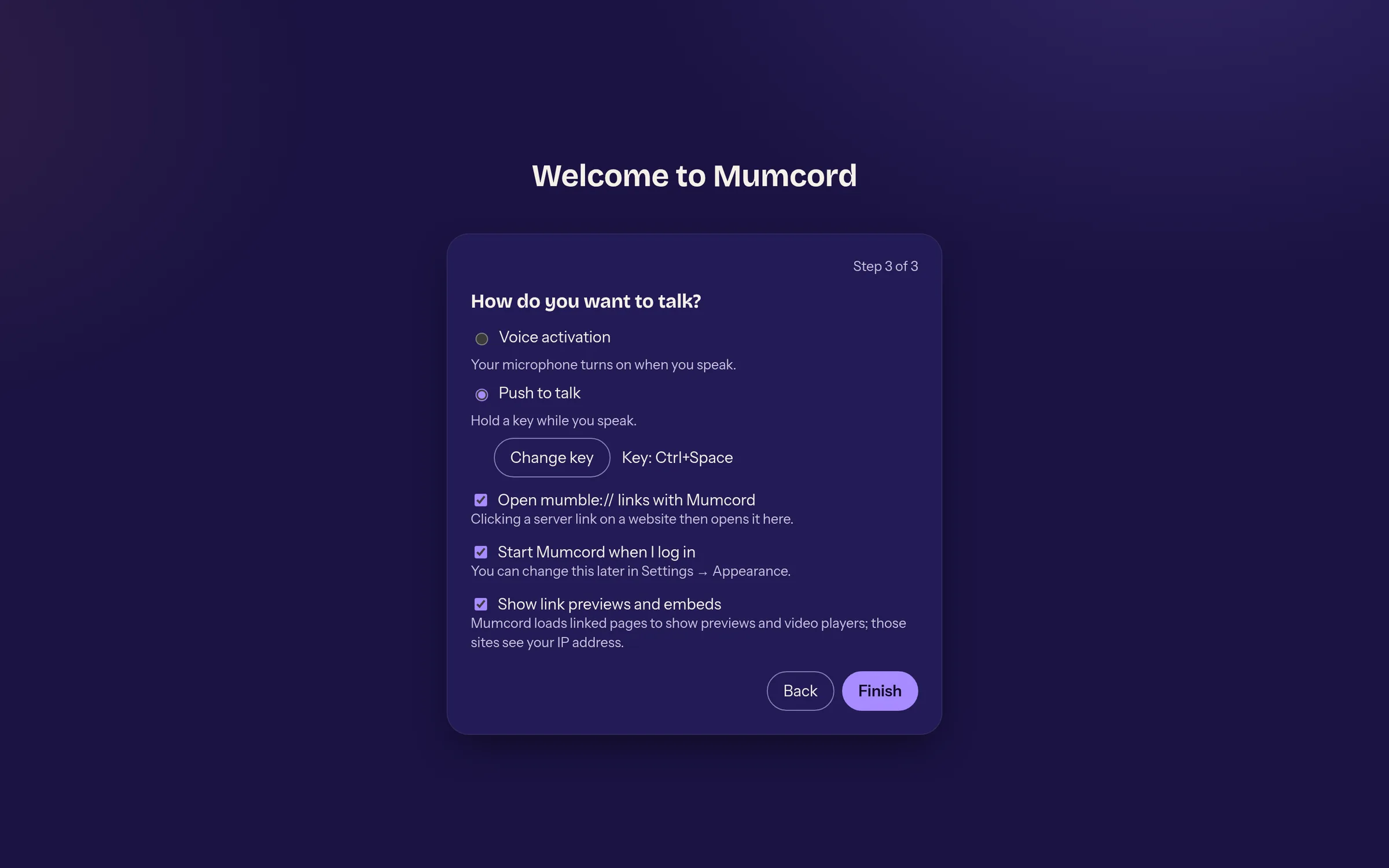
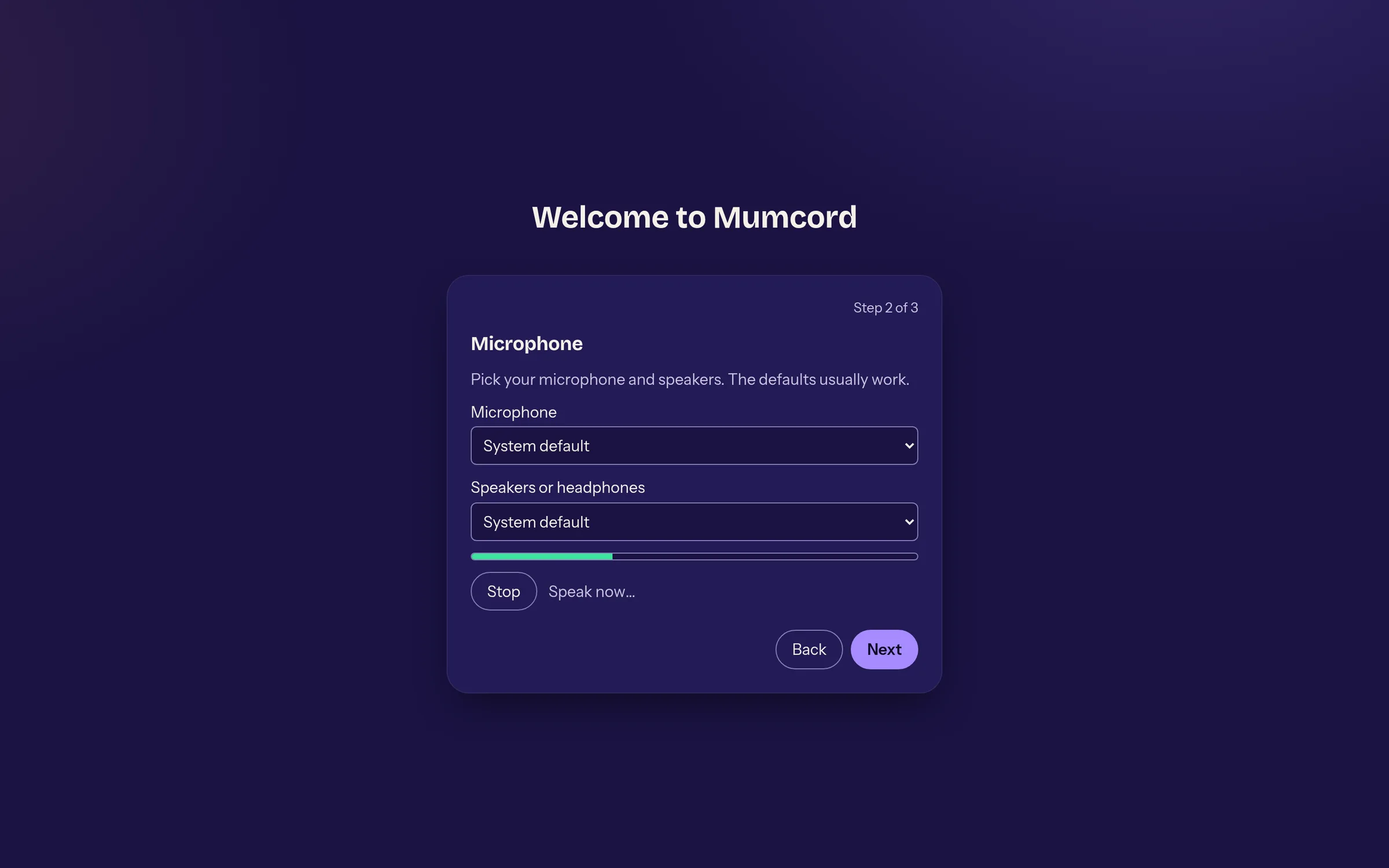
On first start Mumcord asks for three things only: your name and identity, the microphone with a level test, and how you want to talk. Existing Mumble identities can be imported as PKCS#12.
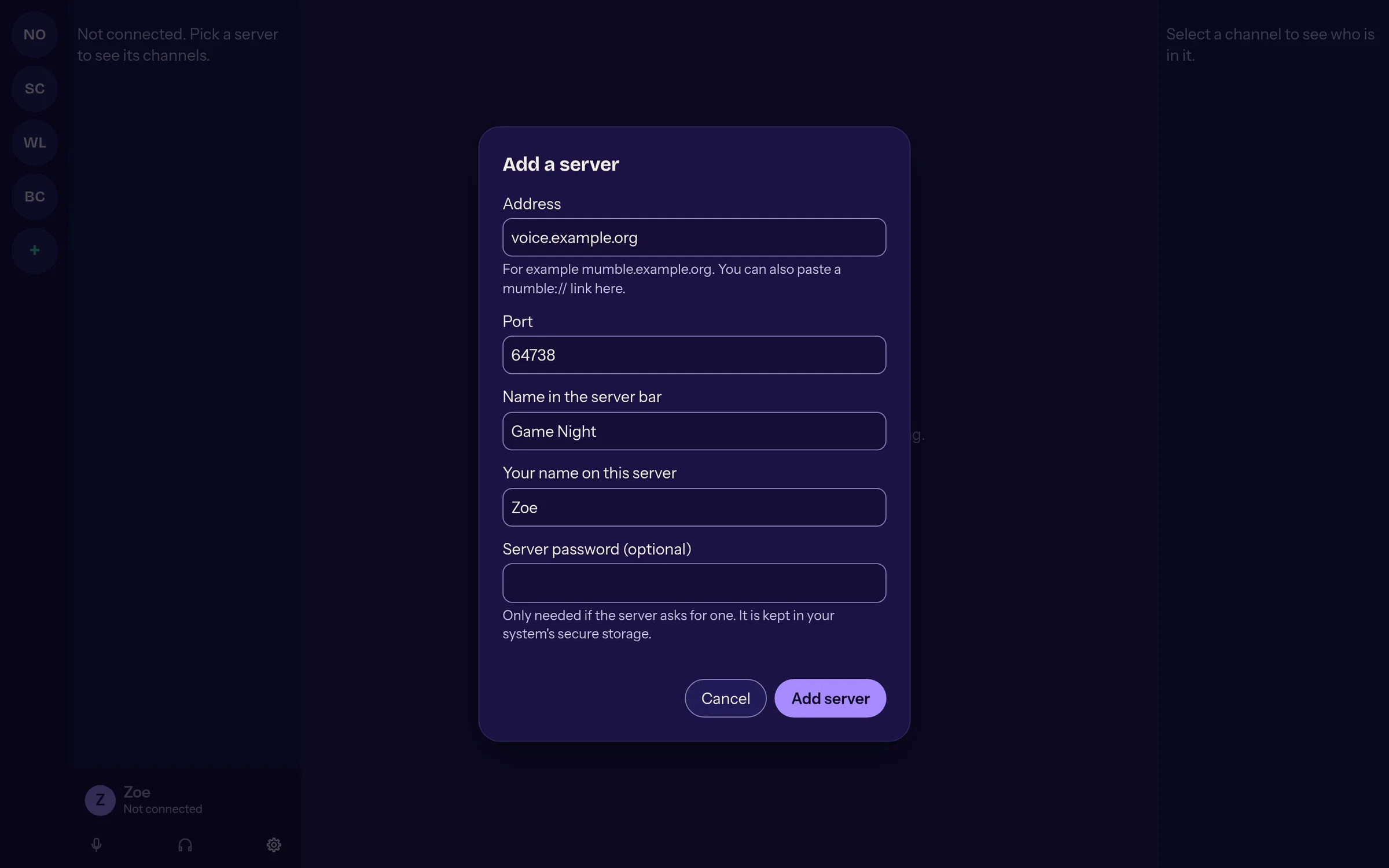
Server bar and mumble:// links
Saved servers in the bar on the left, added by address or link, reordered by dragging. A mumble:// link from the browser opens Mumcord and jumps straight into the channel.
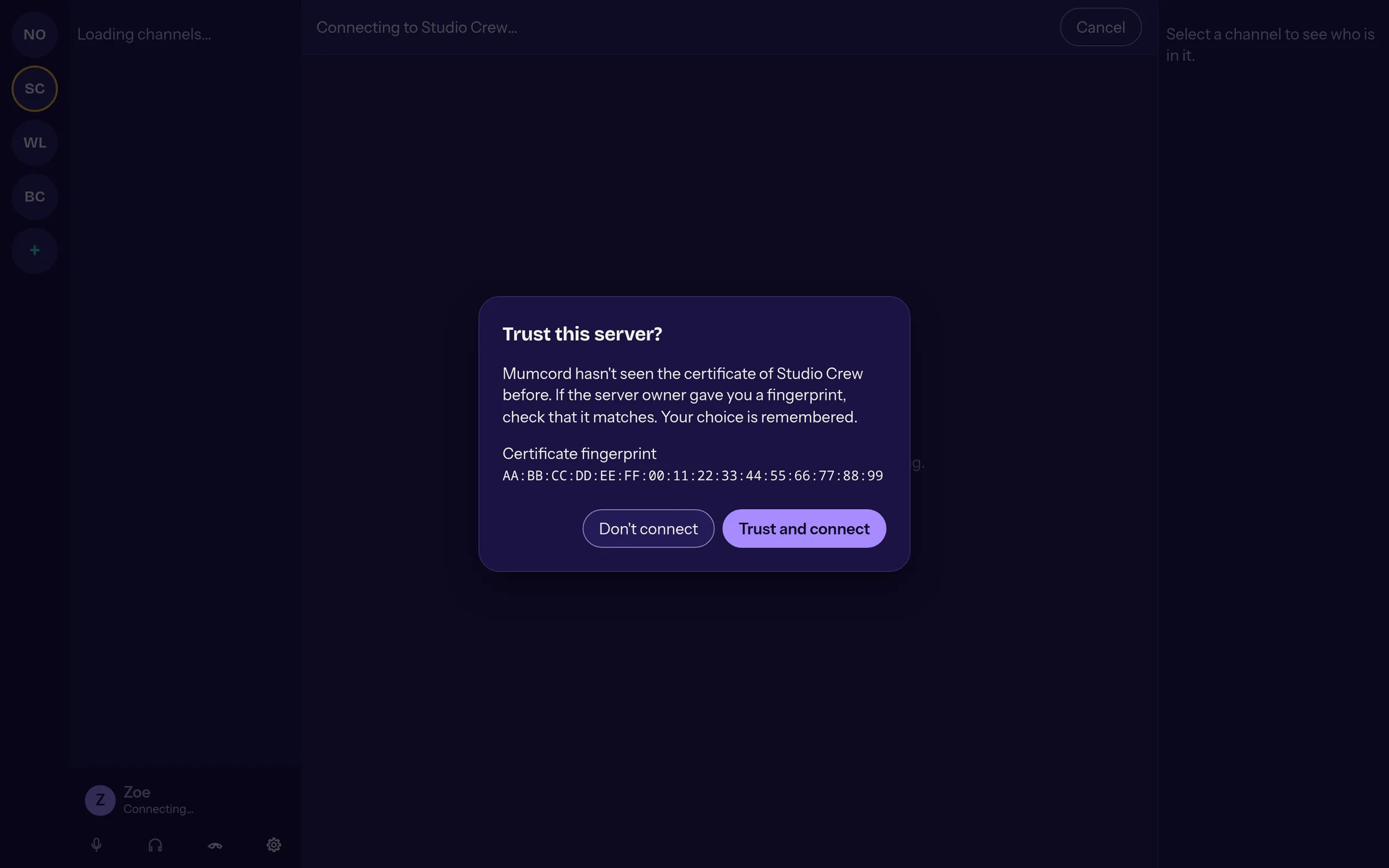
Certificates that make sense
On first contact Mumcord shows the server's fingerprint and remembers it. If it changes later, you get a clear warning instead of a silent click-through.
Reconnect with everything
If the connection drops, you're back in the same channel with your mute/deafen state and followed channels. After a restart Mumcord offers to rejoin your last voice channel.
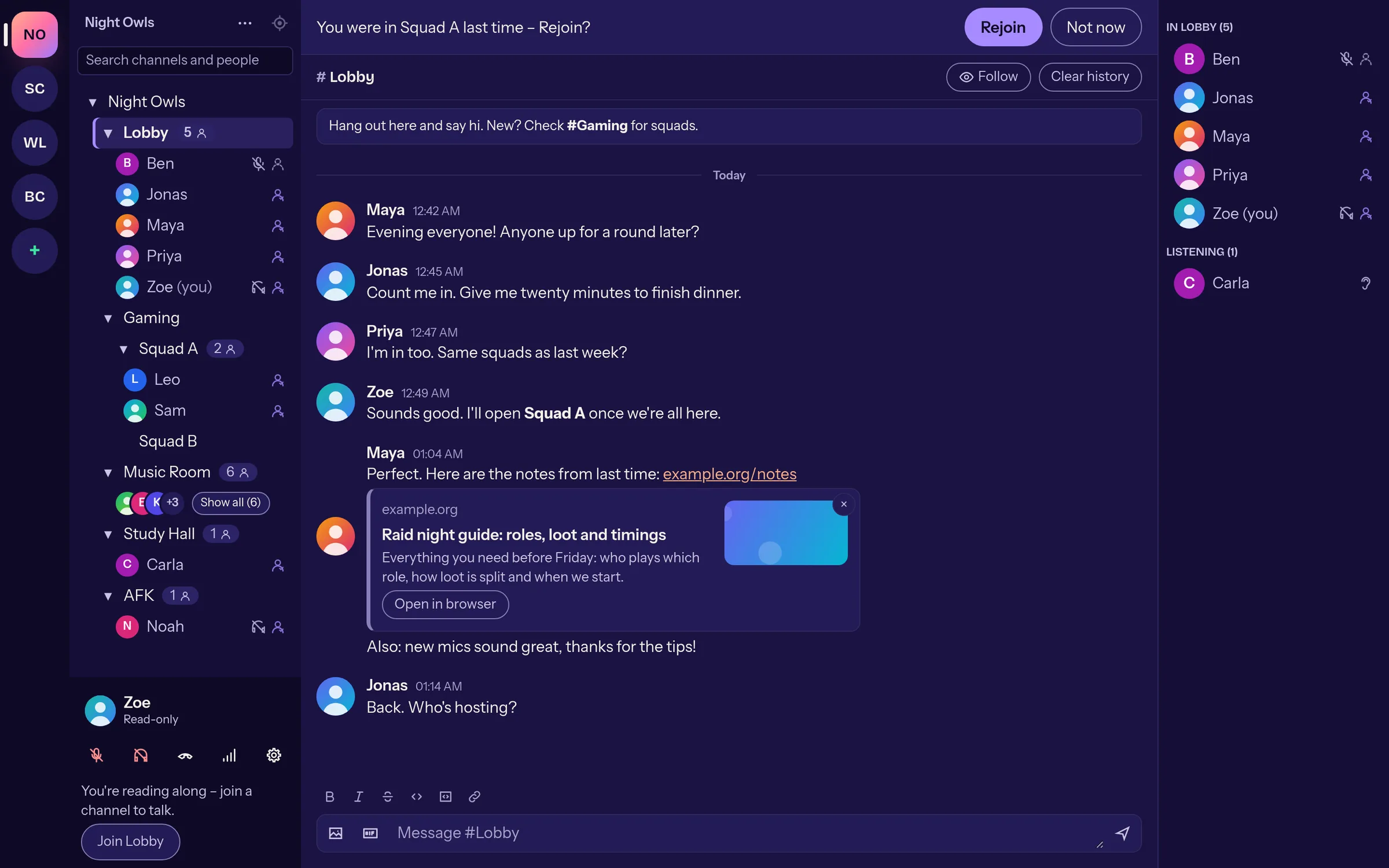
Channels and people
Follow channels
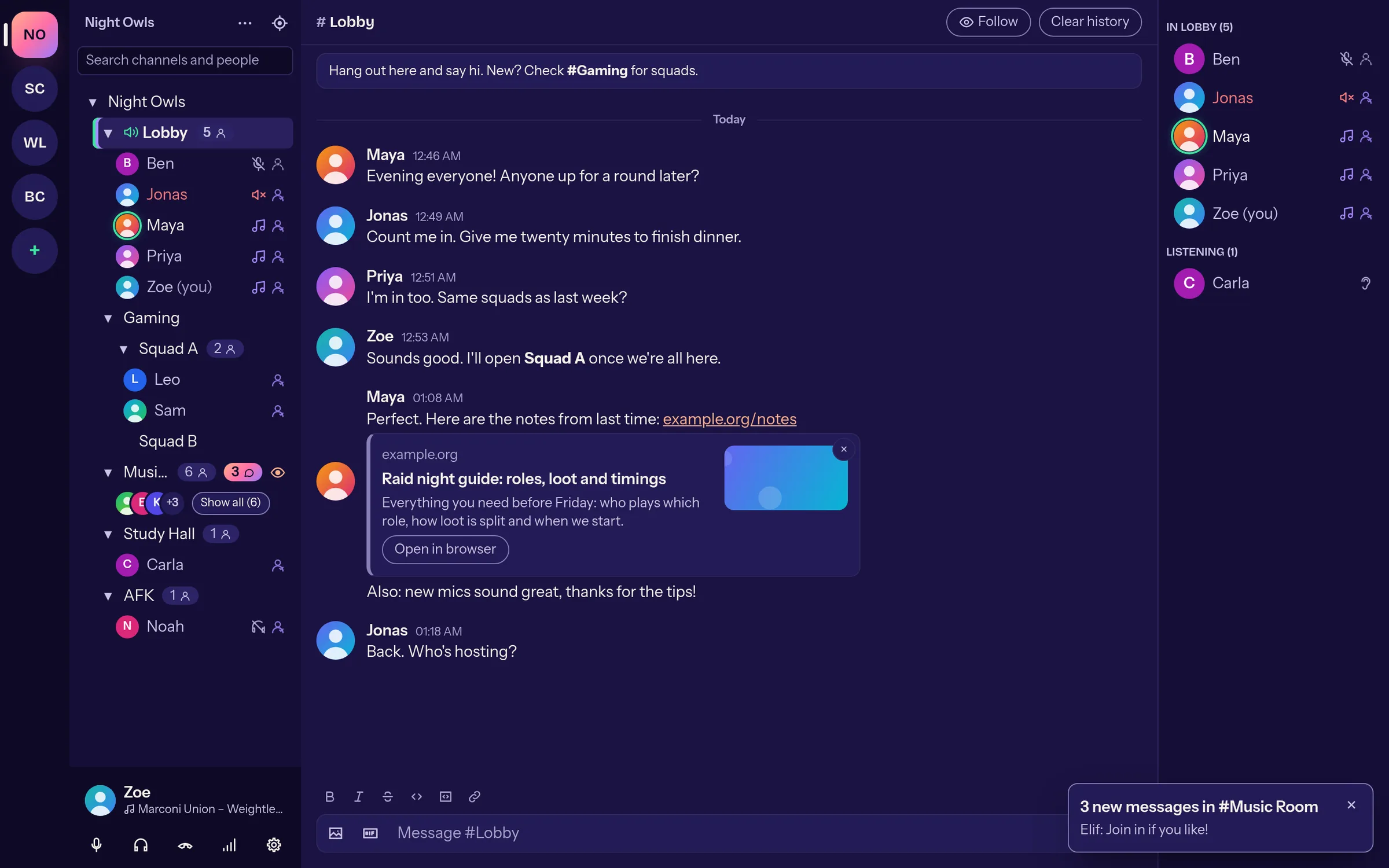
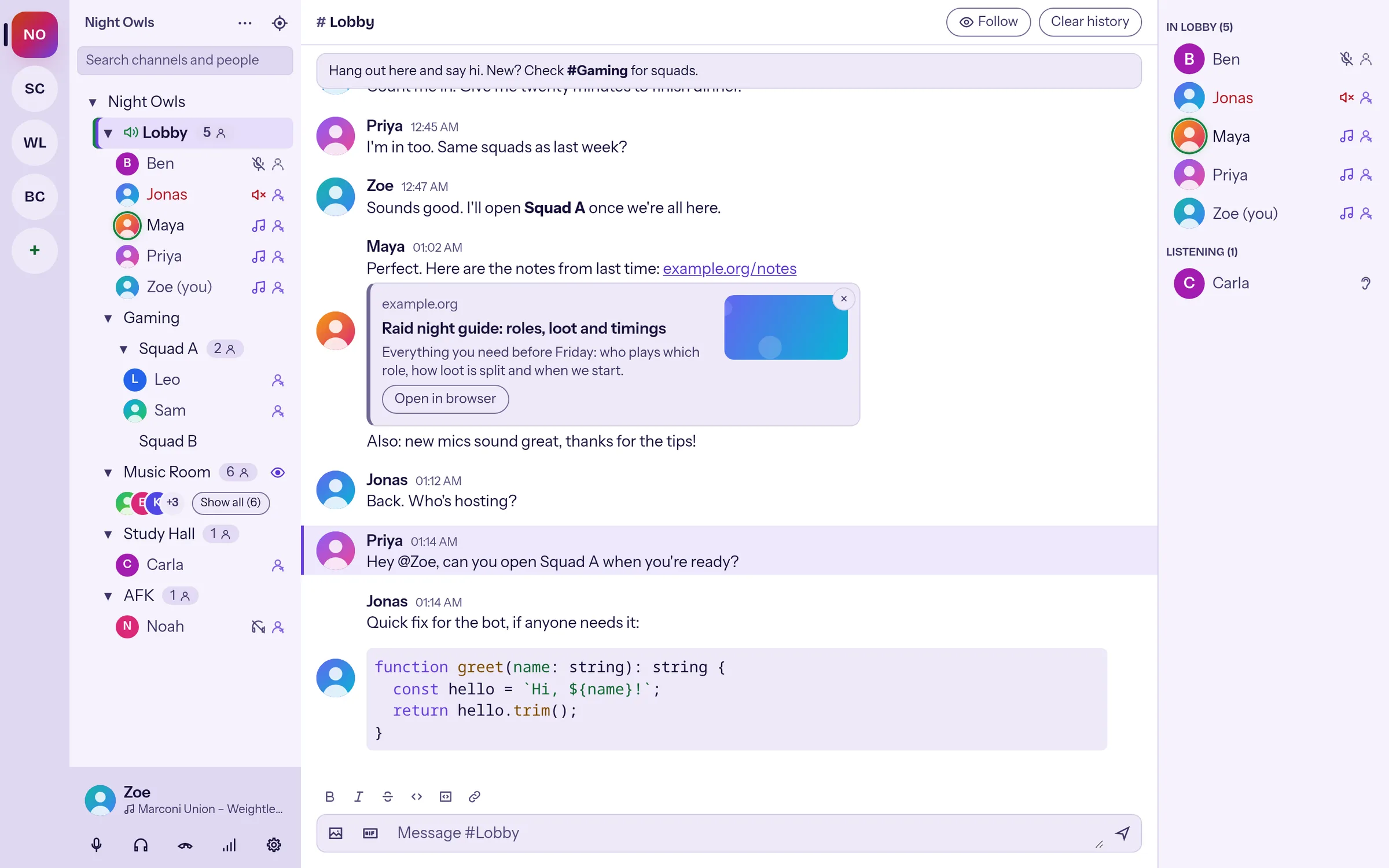
One click on the eye and you read along in a channel without being in it. Unread messages show as a count, in your own channel too.
Big servers under control
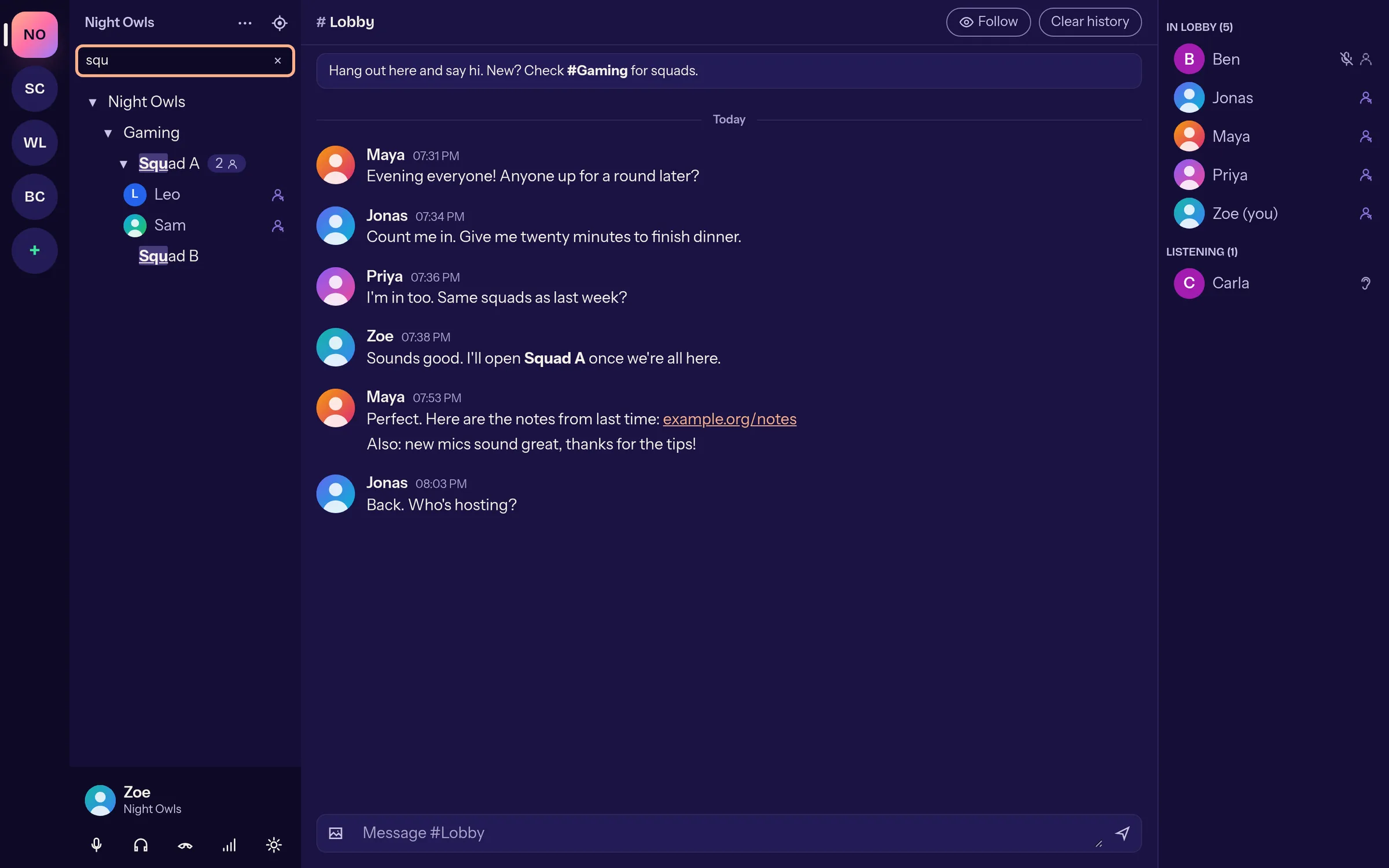
Ctrl+K searches channels and people, “Jump to my channel” brings you back. Tested with 1000 people in 305 channels at a smooth 60 fps.
Who is where
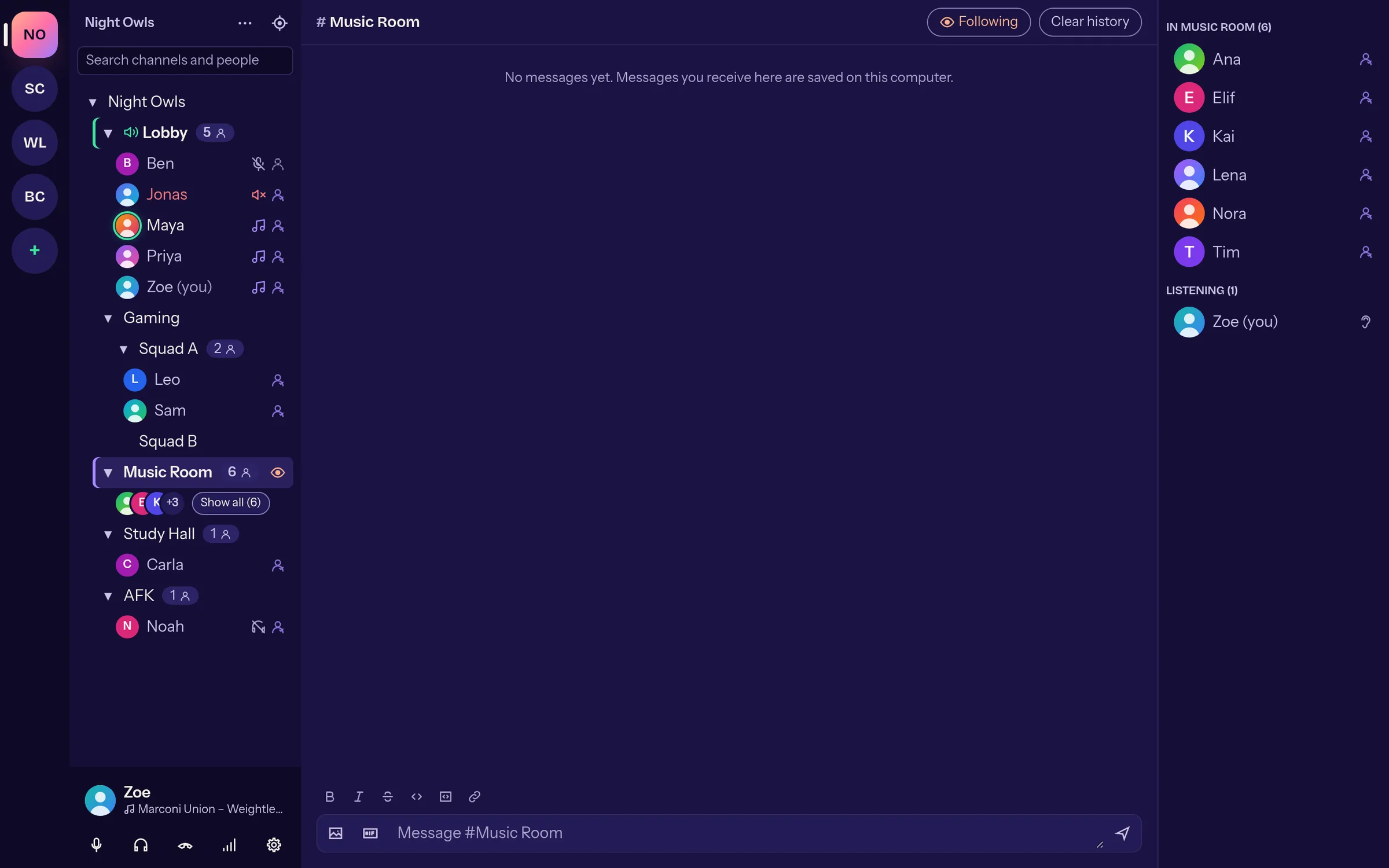
Collapsed and crowded channels show a stack of avatars. Hover for a profile preview.
Right-click people
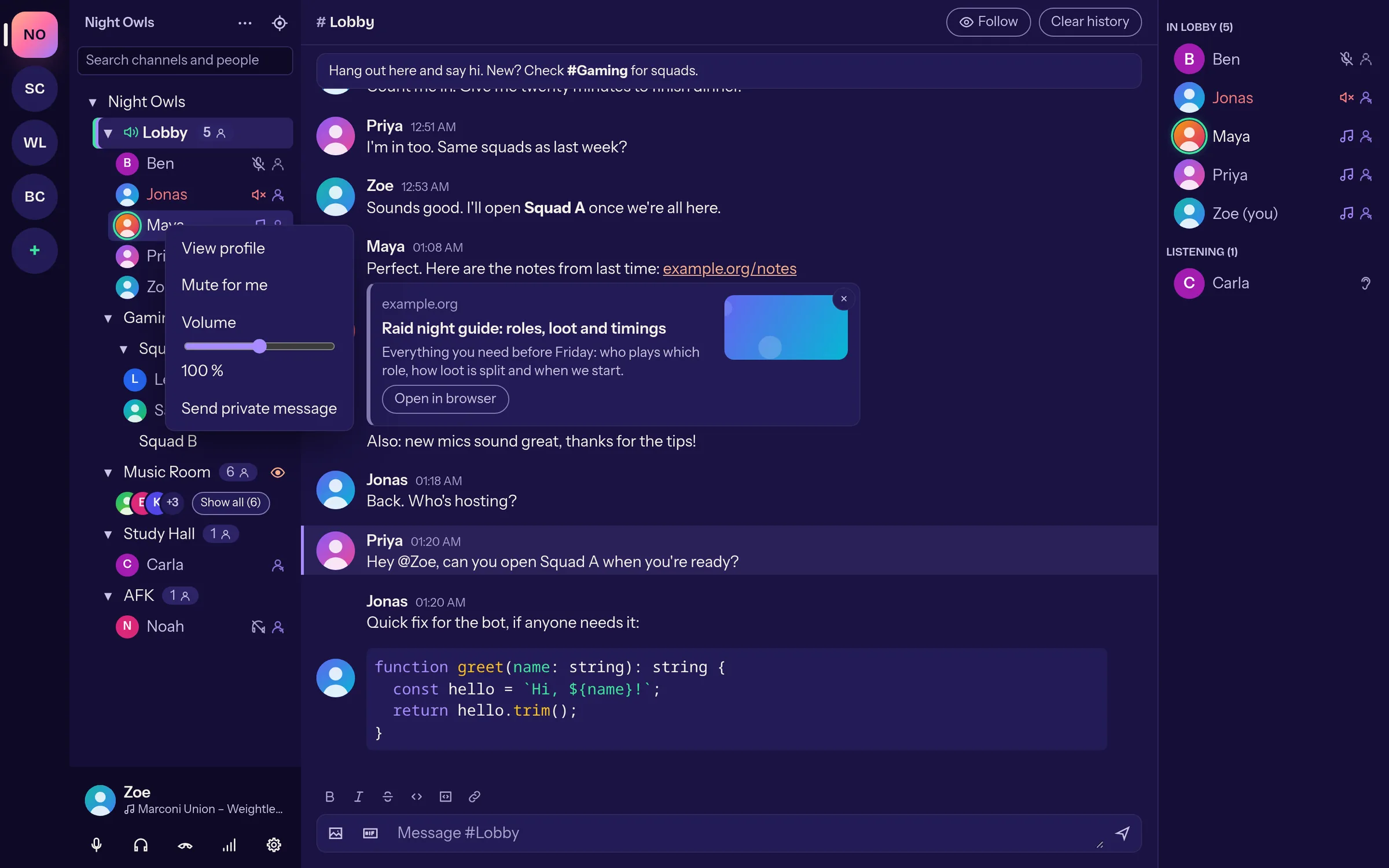
See the profile, mute just for you, set the volume from 0 to 200 % or send a private message. Mumcord remembers it per person.
Chat
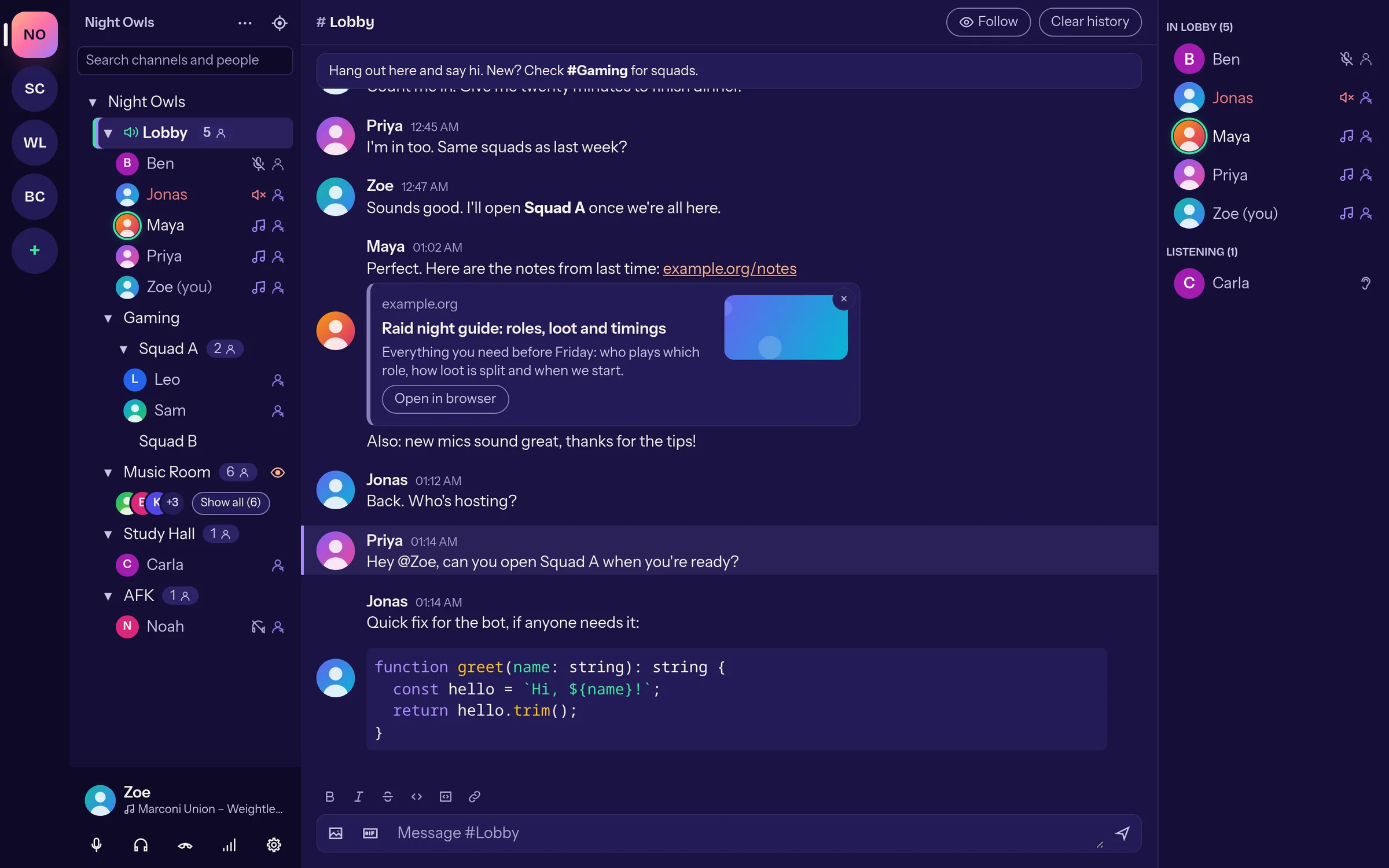
Discord-style chat
Avatars, grouped messages, Markdown and pasted images. The channel description and welcome message are pinned on top.
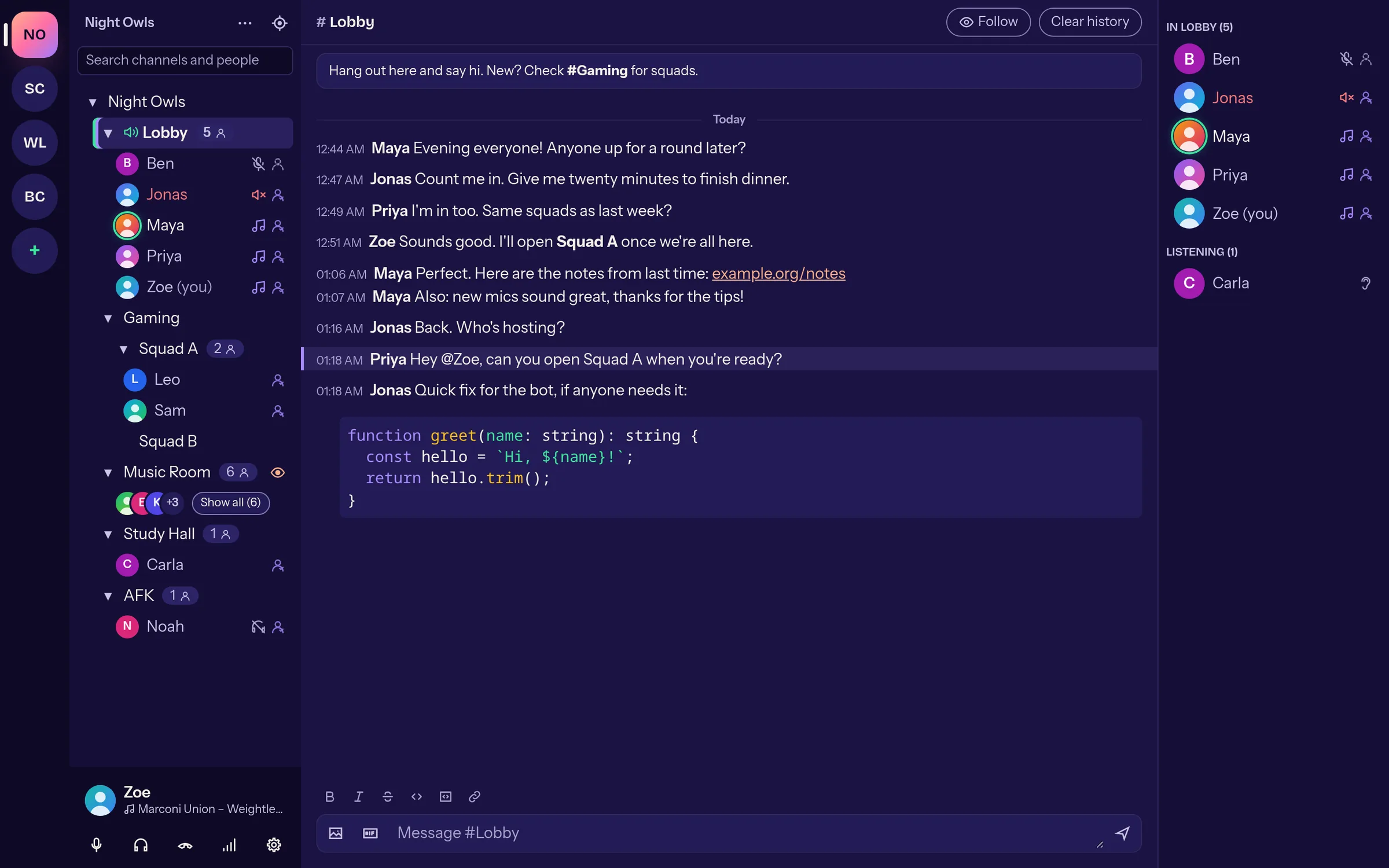
Compact for busy channels
One line per message with time and name when a lot is going on.
Link previews
Links get a card with title, description and image. Mumcord fetches them itself, never from local network addresses; every card can be dismissed, and the feature can be switched off in the wizard and in settings.
new in 0.2.0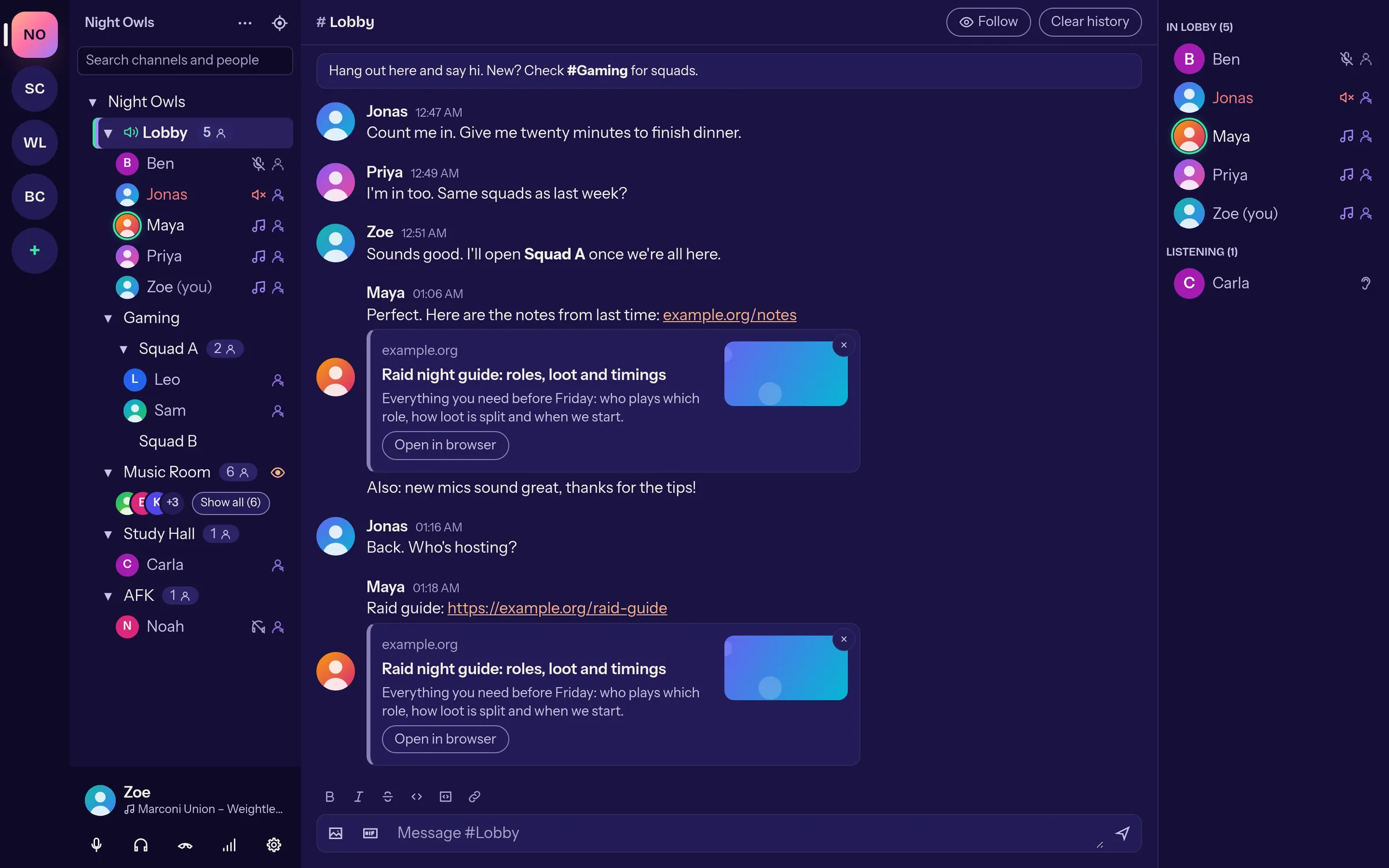
YouTube and Twitch
Video links turn into a card with a thumbnail. The player loads only when you click play.
new in 0.2.0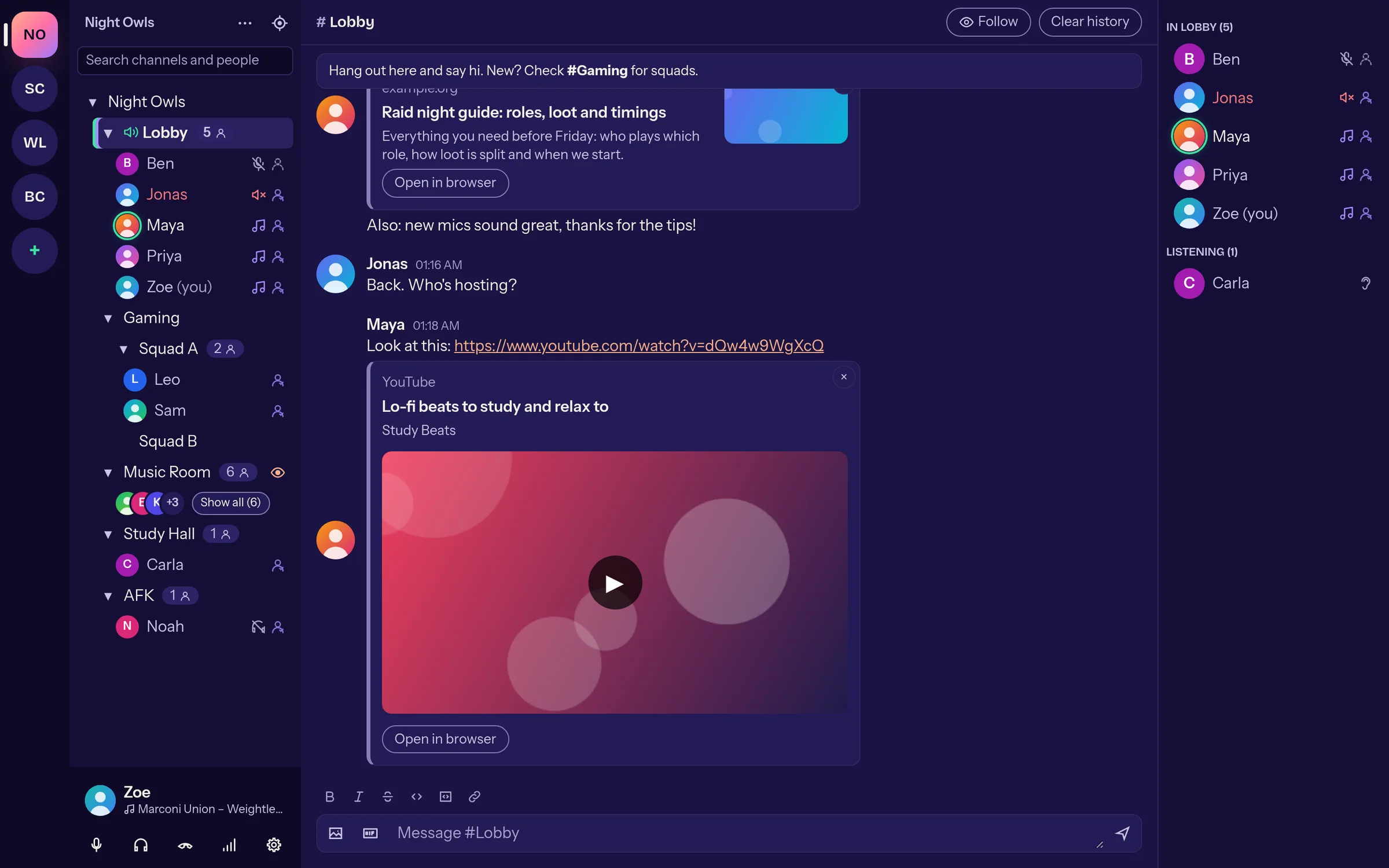
Spotify
Spotify links get a card too, with cover, title and artist; the player comes only on click.
new in 0.2.0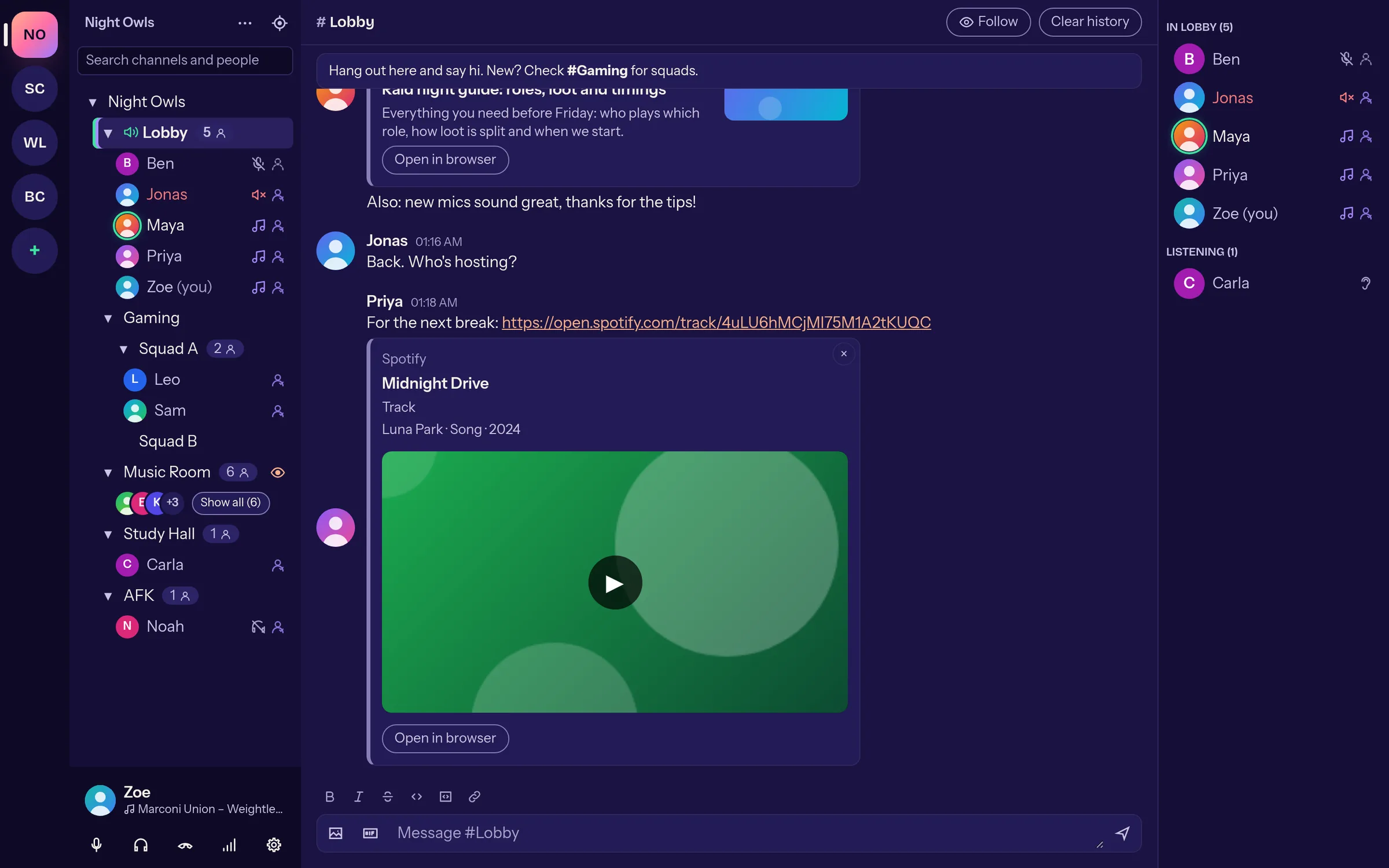
Images and GIFs in the chat
External images and image links show right in the message, Giphy and Tenor GIFs play and credit their source.
new in 0.2.0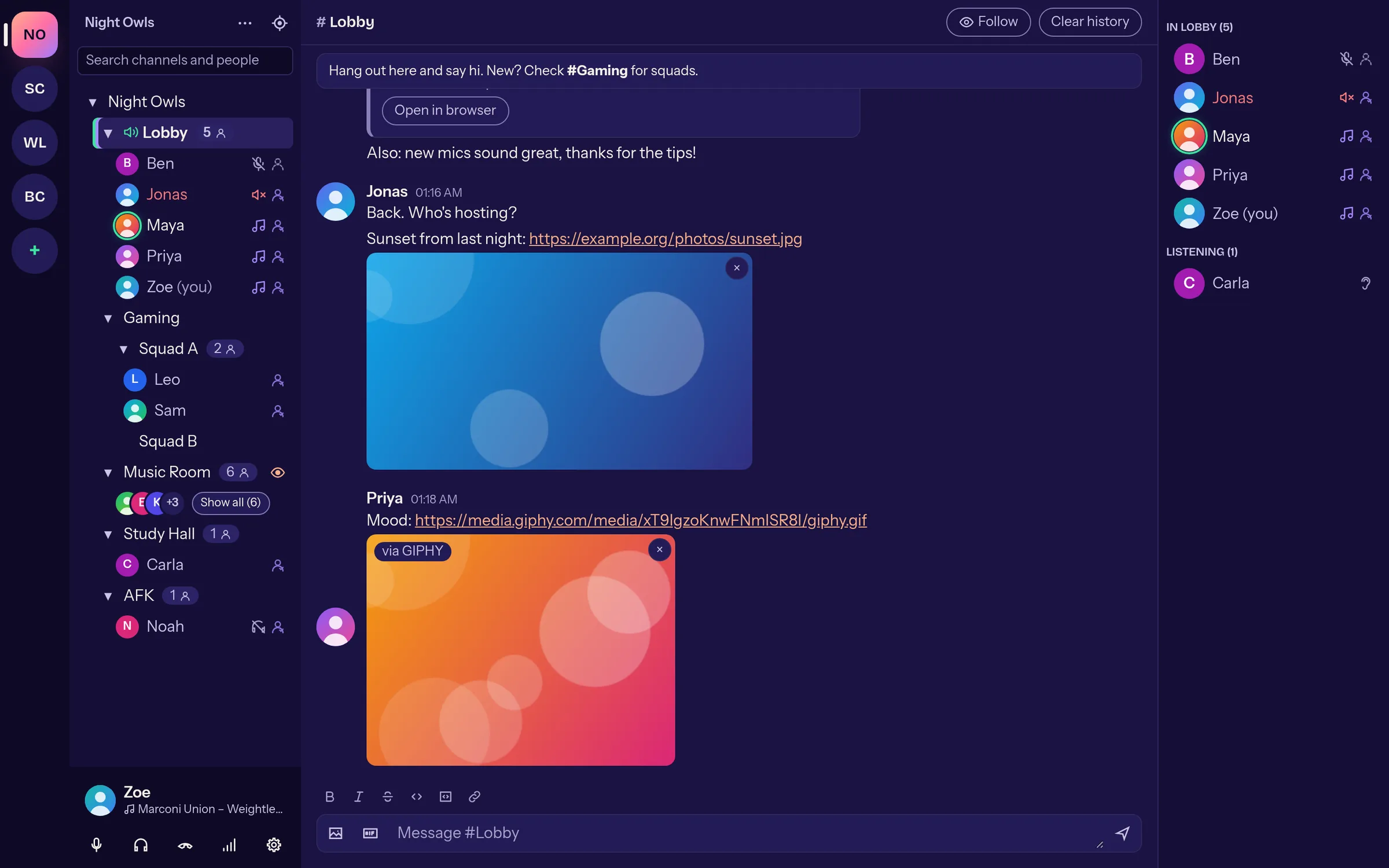
Image viewer
Click an image to see it large: zoom with the wheel or keys, pan, arrow keys through all images of the chat and “Save image”.
new in 0.2.0
@mentions
Type @ and Mumcord suggests names. Mentions are highlighted, notify you even in quiet channels and have their own sound.
new in 0.2.0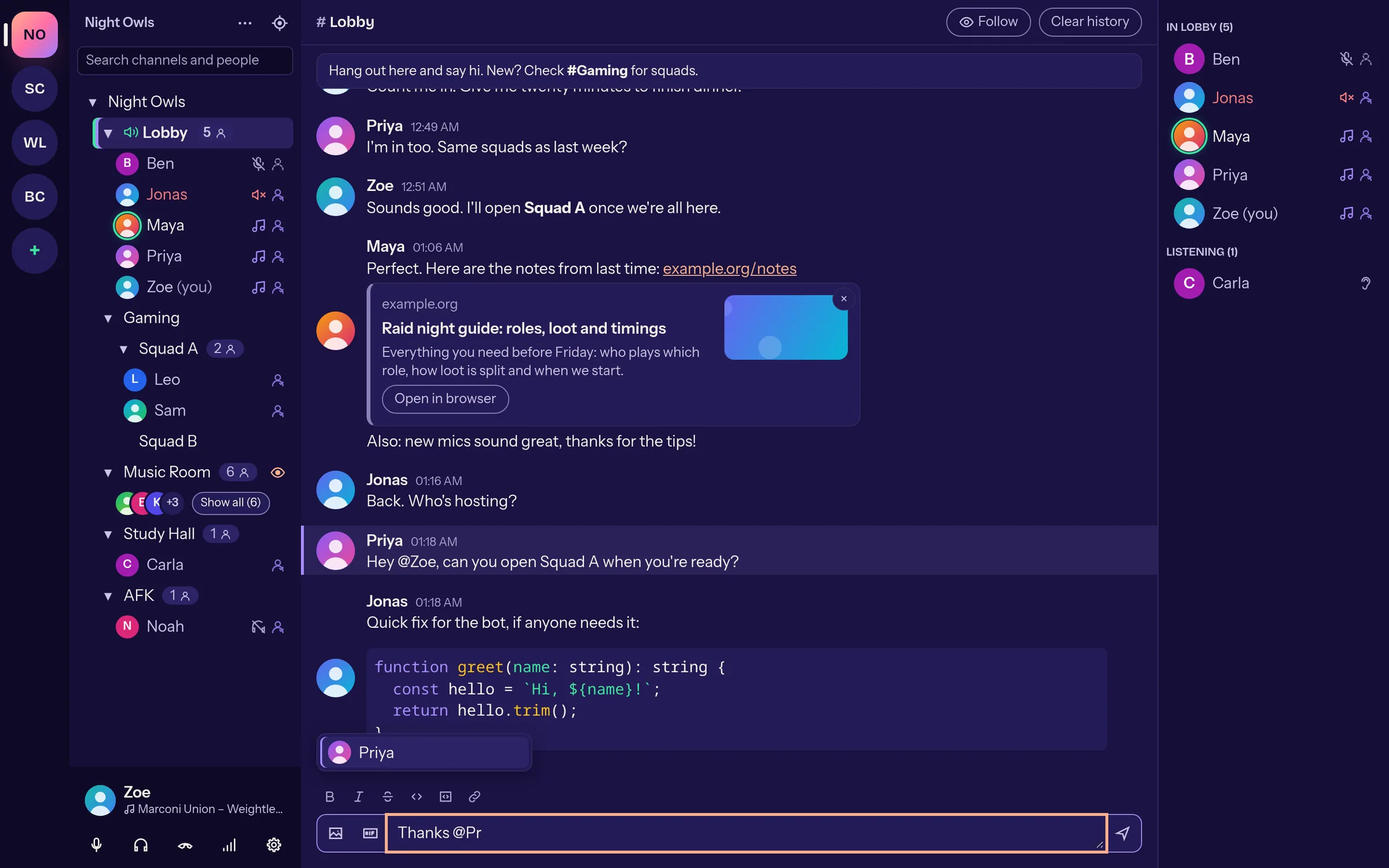
Code and formatting
Code blocks with syntax highlighting, a formatting toolbar above the input and shortcuts like Ctrl+B, Ctrl+I or Ctrl+E.
new in 0.2.0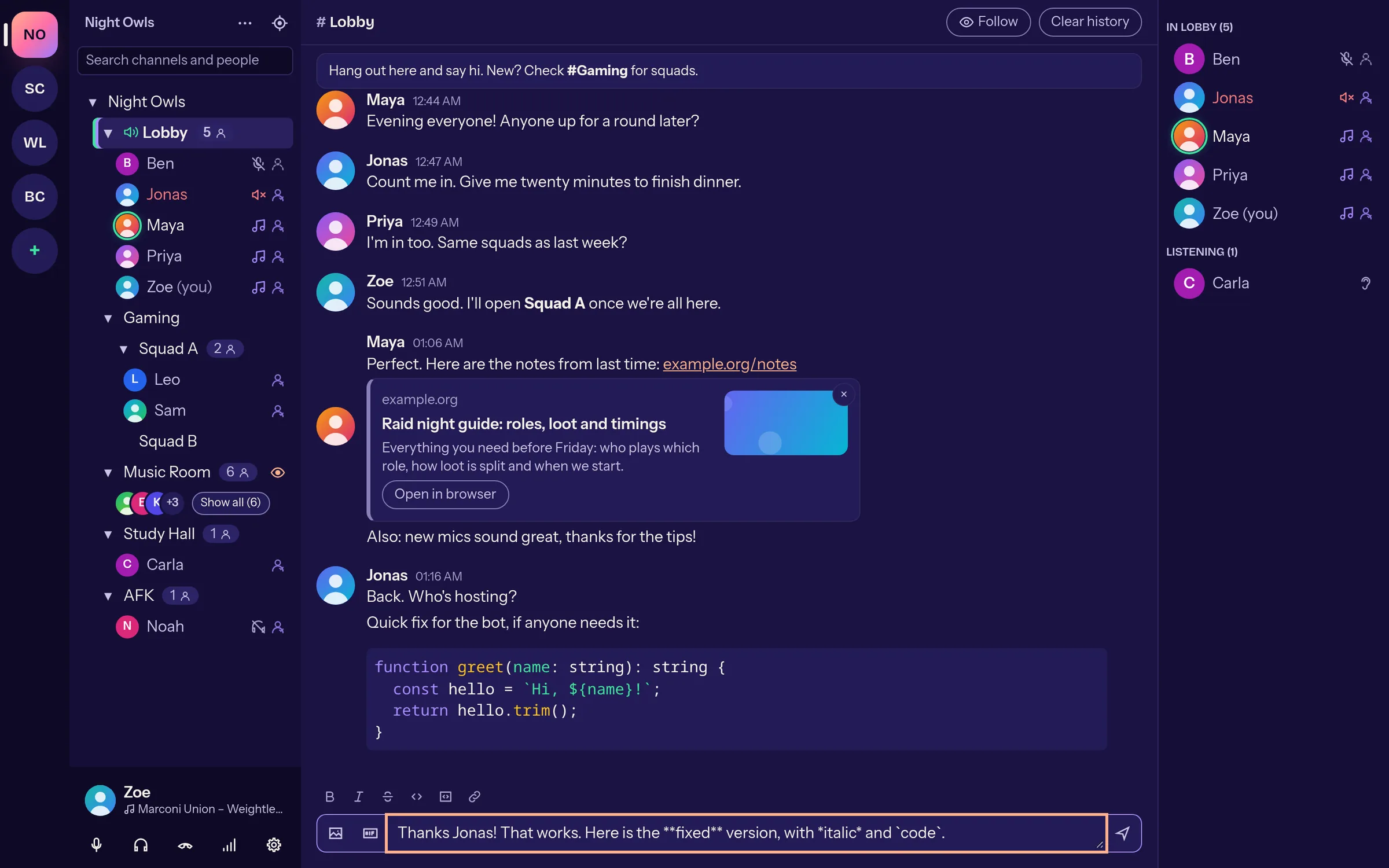
GIF favorites
Save any GIF in the chat as a favorite by right-click and send it again from the GIF button. There is no GIF search on purpose: it would need an API key inside the app.
new in 0.2.0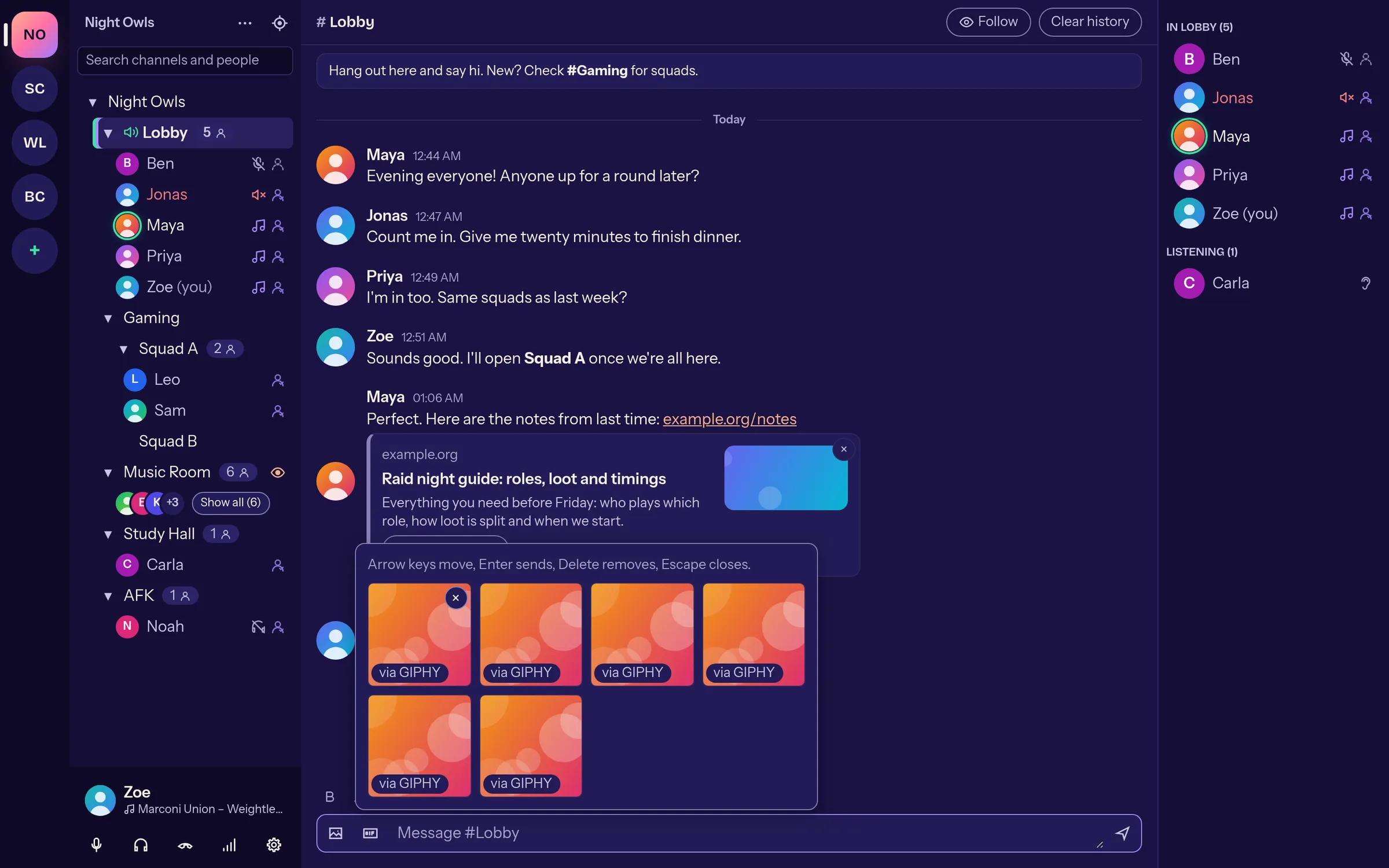
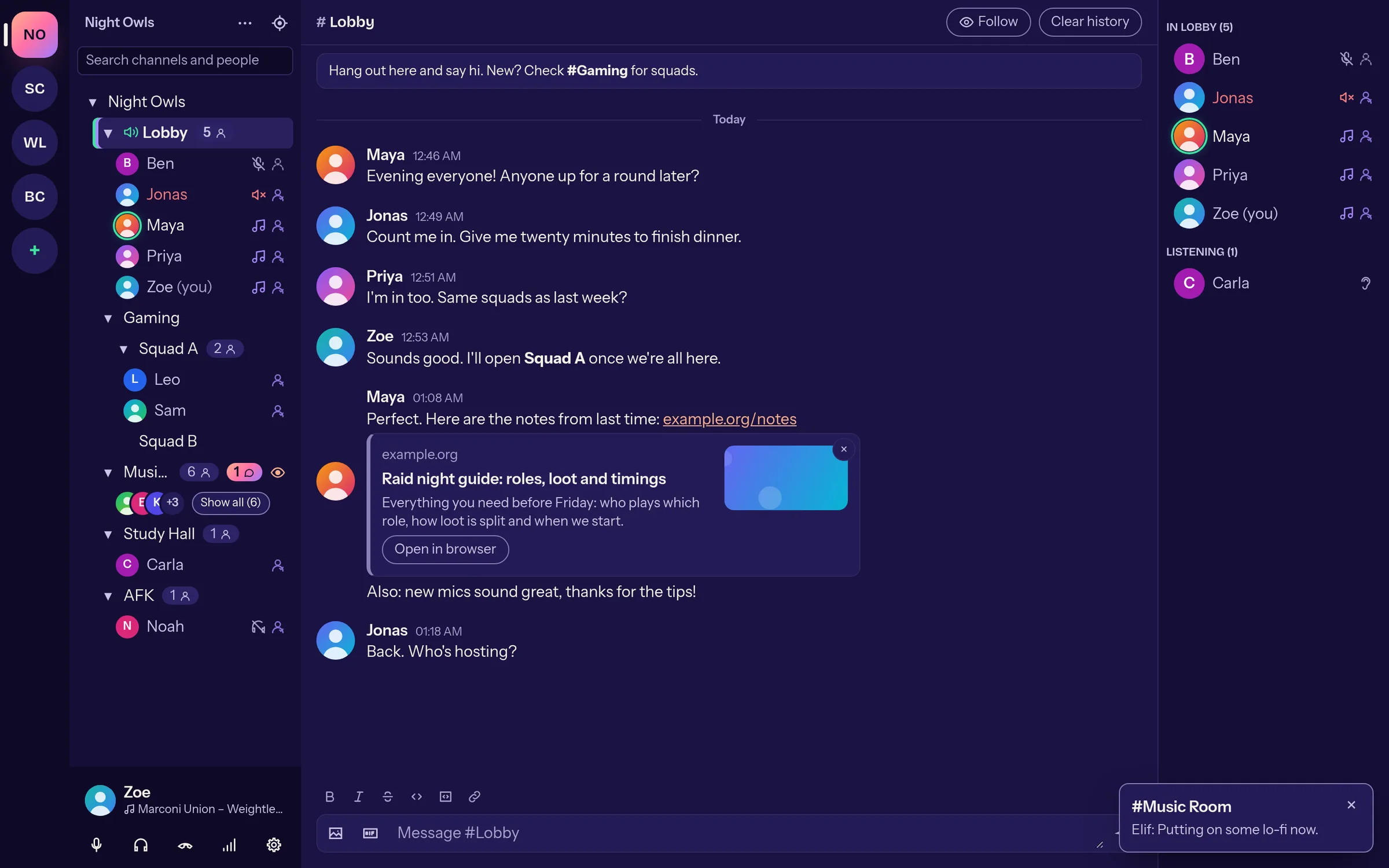
Notifications your way
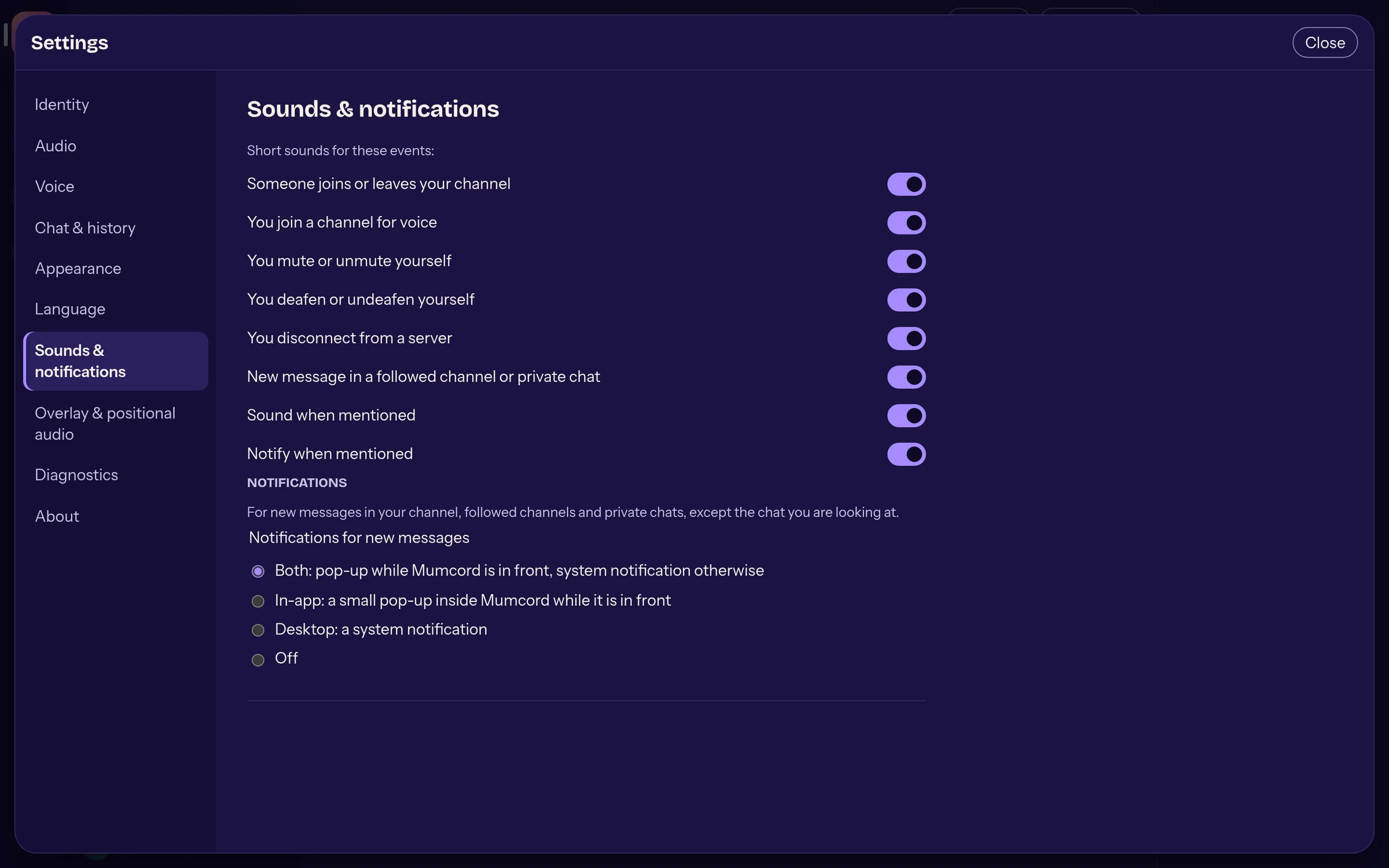
New messages as an in-app pop-up, a system notification, both or none. Plus short, quiet sounds per event.
Cleans up after itself
Previews and images are deleted after a number of days you choose, old chat history too if you like. History lives only on your computer and can be switched off per server.
new in 0.2.0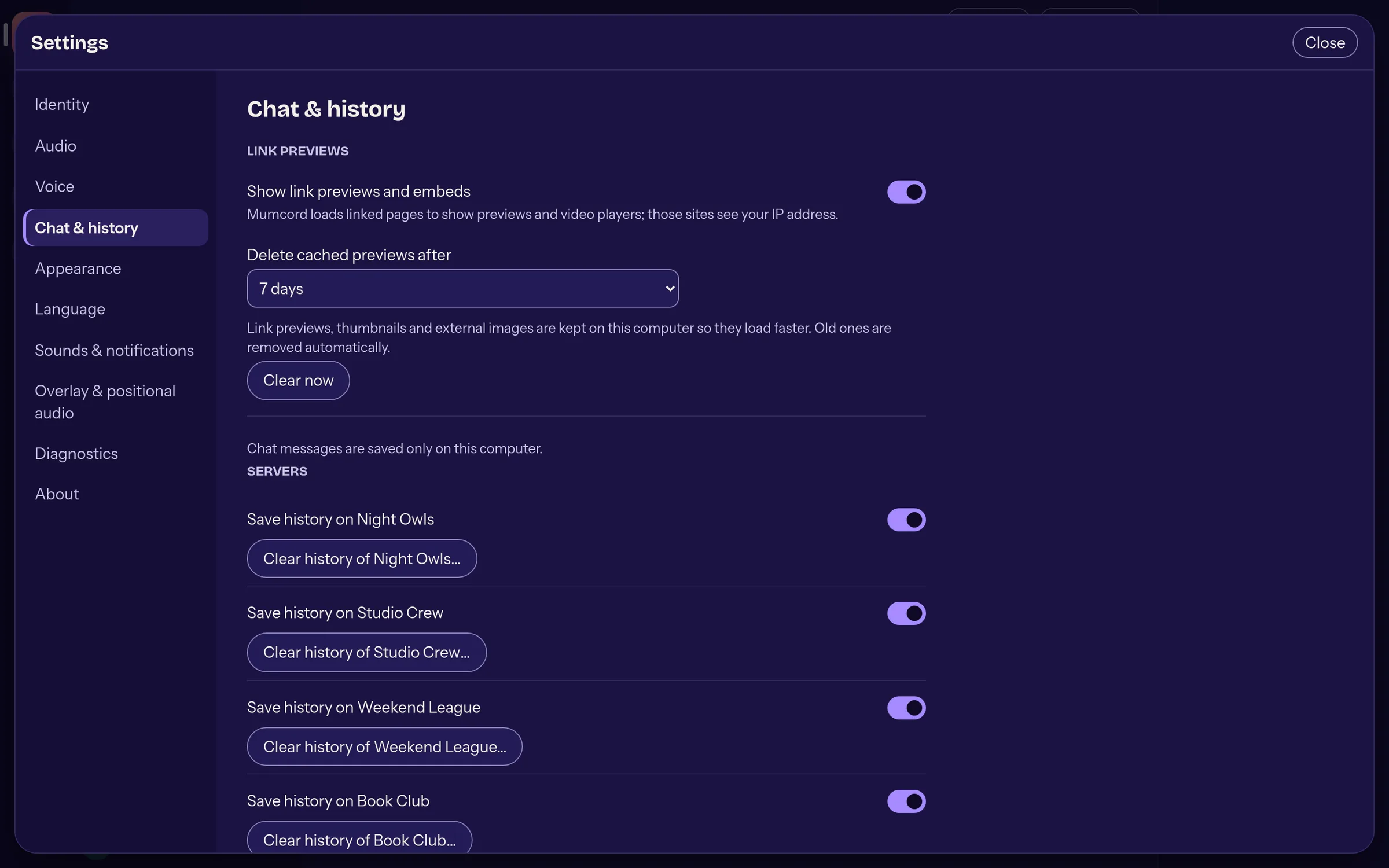
Voice and audio
Push-to-talk everywhere
Keys and mouse buttons, even with a game in the foreground. On Wayland via the shortcuts portal or in a TeamSpeak-like compatibility mode.
Voice activation with your own threshold
Automatic or by hand: a slider over the live level meter sets when Mumcord starts sending. A short hold keeps word endings intact.
new in 0.2.0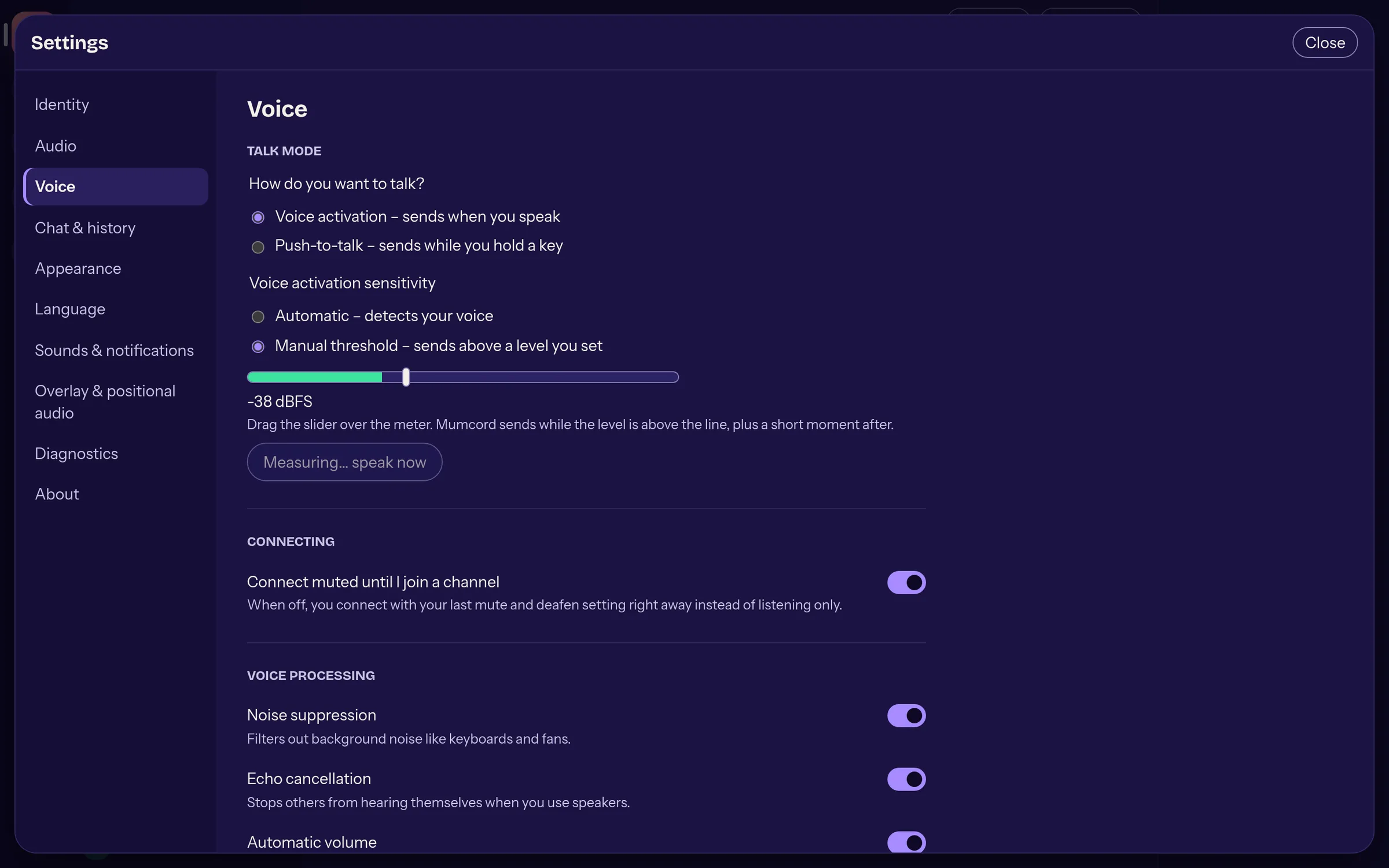
Clear sound out of the box
AI noise suppression, echo cancellation and automatic gain are on. Switch devices without reconnecting, test your microphone with your own voice.
Music quality
One switch raises the bitrate up to the server's limit, at most 510 kbit/s, tunes the encoder for music and turns off noise suppression and automatic gain.
new in 0.1.1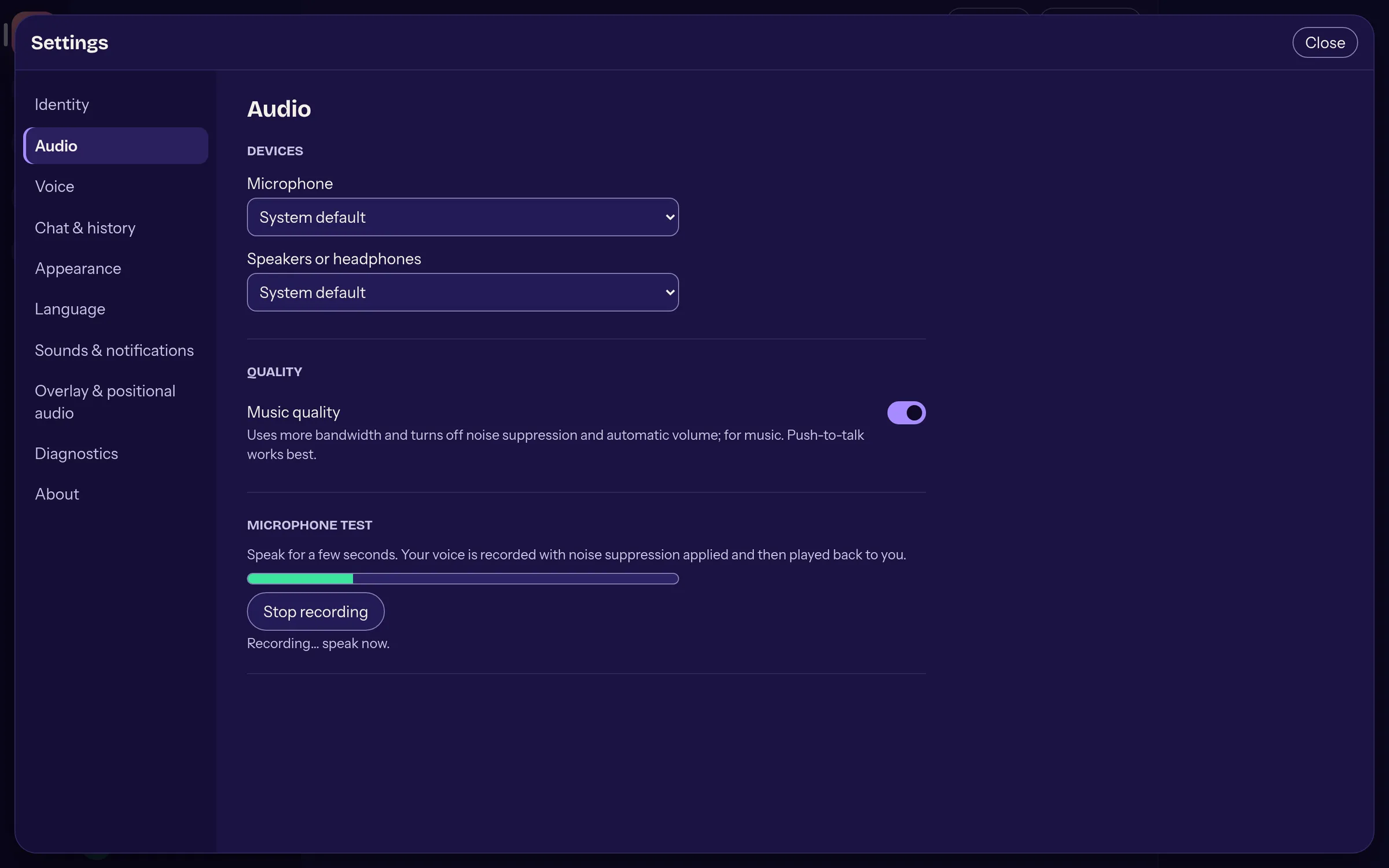
Now playing
If you like, other Mumcord users see what music you're listening to, with cover and progress. On Linux and Windows.
new in 0.2.0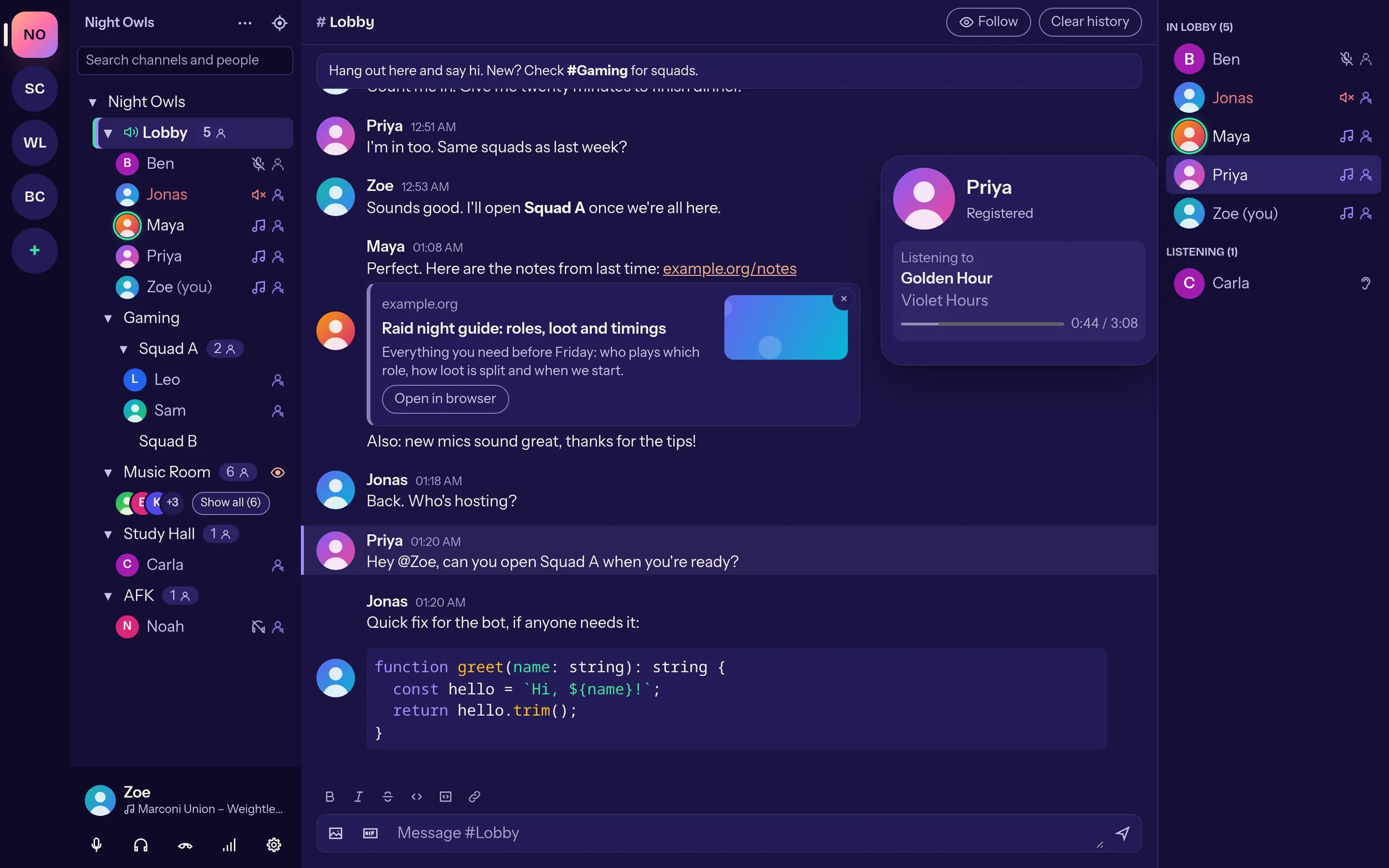
Comfort
Light and dark
Follows your system or your choice.
Sounds and notifications
Every event can be switched on its own: joining, leaving, messages, mentions.
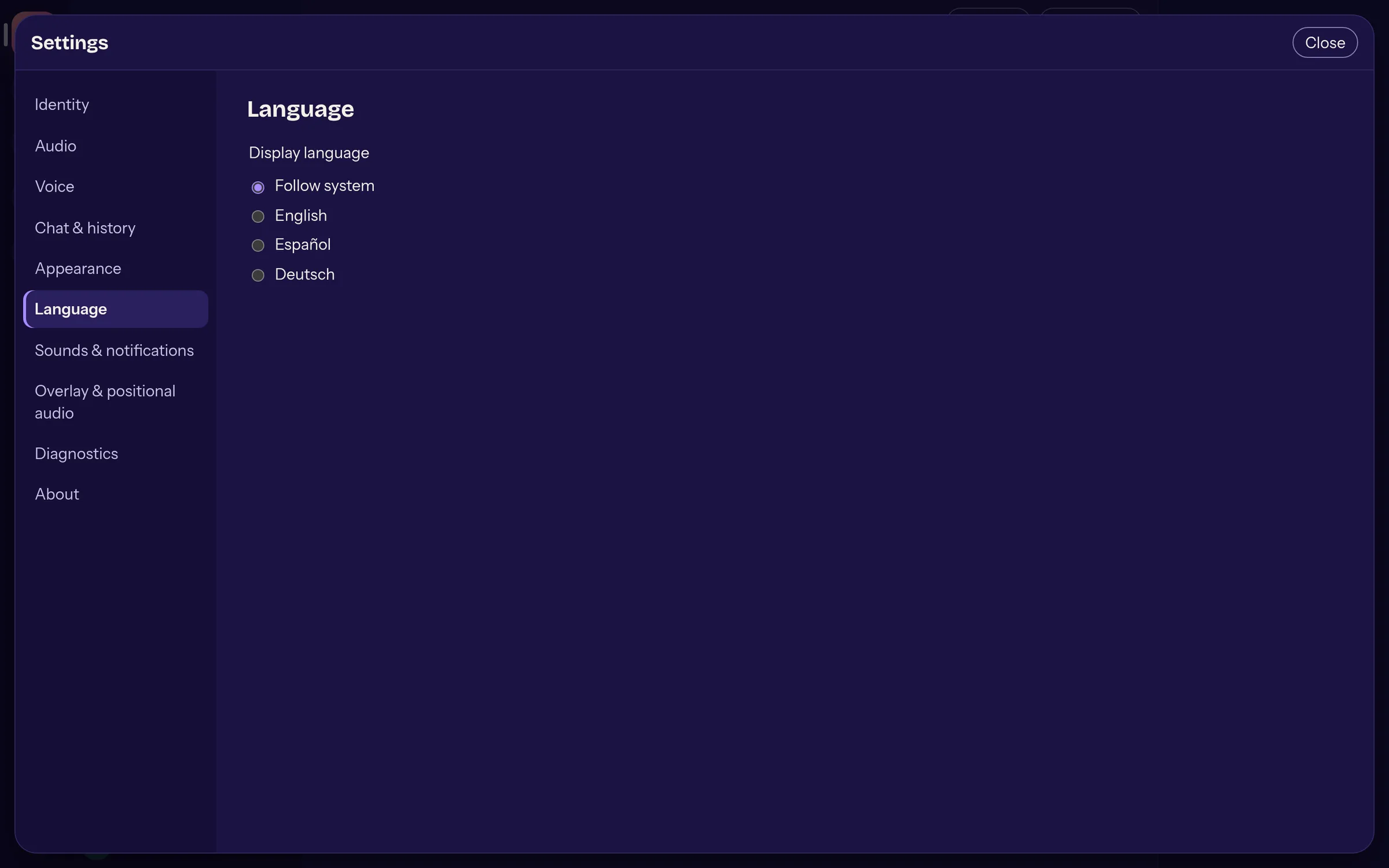
English, German, Spanish
Switch without restarting. A tray icon, start at login and full keyboard and screen reader use come with it.
-
No telemetry
Your identity lives in the system's secure storage. The diagnostic file contains no chat contents or passwords and only leaves your computer if you send it yourself.
Missing something? Something broken?
Ideas and bugs are collected in the issues on GitHub. You need a free GitHub account; the templates only ask for what actually helps.
Request a feature Report a bug
Please don't report security problems publicly; email tobias@vorwachs.com instead.